Contents +
How do I set up an email account for export businesses? How can I configure it to avoid it ending up in the spam/junk mail folder?
Source: 创同盟
Date: 2026-10-26
Views: 68
In the previous article, we compiled a list of essential WordPress plugins , the first category of which was form plugins. These plugins determine whether customers will send you inquiries on your website.
But successfully submitting the form is only half the battle. People who run foreign trade websites often encounter two seemingly unrelated issues.
One is when a client says they sent you an email, but you can't find it in your inbox. Another is when you finally reply with a quote, but the client doesn't respond, and you later find out it went to their spam folder.
The first problem lies in "receiving," and the second lies in "sending." Many people handle these two things together, and after changing settings for a long time, the problem persists.
This article will explain in order: what email address to use, how to configure DNS, and how to verify the configuration. Finally, there's something many people overlook—emails sent from WordPress website forms cannot be solved simply by enabling a corporate email address.
First, separate the three roads.
There are actually three paths related to emails on foreign trade websites. They can influence each other, but the troubleshooting methods differ when problems arise.
1. The client sent you: Recorded using MX.
An MX record is like a sign under your domain name, telling the world, "Mail addressed to this domain should be sent to this server."
No settings need to be configured on the client's side; the recipient's server will automatically check your domain's MX record. Therefore, if there's a problem on this path, it's most likely due to an incorrect or missing MX record, or old records remaining after switching service providers.
2. When you send it to the client: it relies on SMTP and requires authentication.
The common practice is to send emails via the web interface of the email service provider or through SMTP authentication in the email client.
Sending the email is only the first step. The recipient's server may also check SPF, DKIM, and DMARC to see if the email is authorized by your domain. If these three are not configured correctly, the email may still be sent, but it will quietly end up in the spam folder.
3. Self-publishing on the website: WordPress takes a different approach.
Contact form notifications, password resets, and order reminders are typically initiated by WordPress's wp_mail() .
Without a separate email sending service configured, it is usually handled by the host's email sending environment. This route does not have your email account, signature, or sending history—it is not the route you take when you click "send" in your webmail.
Therefore, just because the email address works doesn't mean that form notifications will arrive normally. This is a point that many foreign trade websites easily overlook.
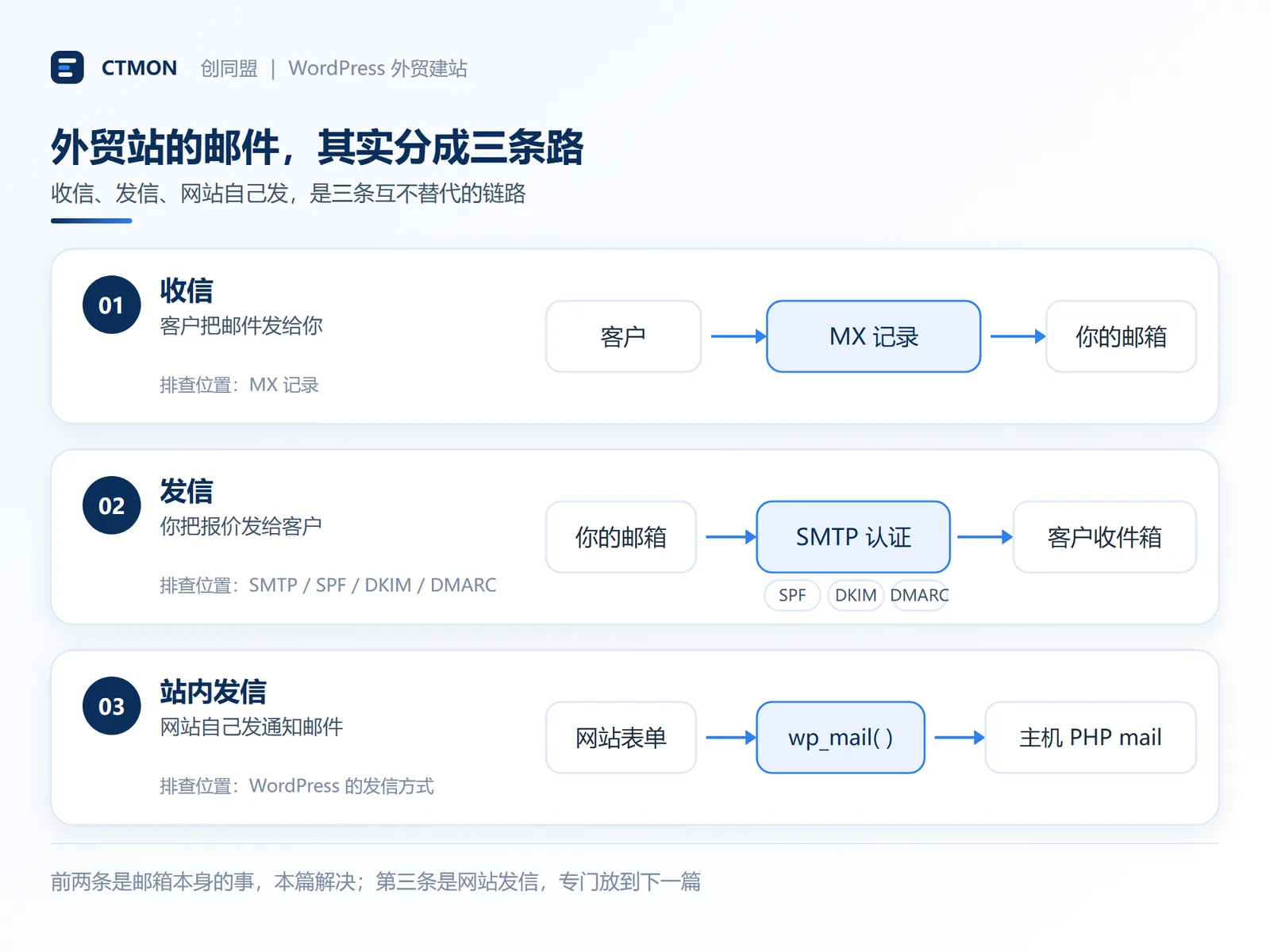
This article mainly addresses the first two points. The third point will be discussed separately in the next article, "What to do if WordPress form emails won't send: WP Mail SMTP configuration practice," which will specifically explain how to configure SMTP or email API for WordPress.
Separate these three points first, and you will no longer be confused as to why you can send and receive emails normally, but not receive any form notifications.
II. Four email options, choose according to your needs.
Don't rush to choose. After looking at the table below, you'll probably find that you only have one or two options.
| plan | How much does it cost in a year? | Can you provide the website with an email sending channel? | Who is it suitable for? |
|---|---|---|---|
| The host comes with an email address. | Some packages include it, while others require separate purchase. | Yes, you can find the parameters in the main unit control panel. | To get started, first set up a domain email address. |
| Tencent Enterprise Email | Depending on the current free/paid plan | Yes, but you need to enable SMTP service in your email settings first. | Domestic team, prefers Chinese backend |
| Zoho Mail | Free version is limited to certain regions; paid versions are charged according to plan. | Check SMTP/API authorization permissions; IMAP/POP are mail receiving protocols. | To balance cost and overseas collaboration |
| Google Workspace | Charged according to the current package and billing cycle. | It needs to be configured according to the officially supported SMTP/OAuth method. | Working with European and American clients requires teamwork. |
A few details that need to be clarified:
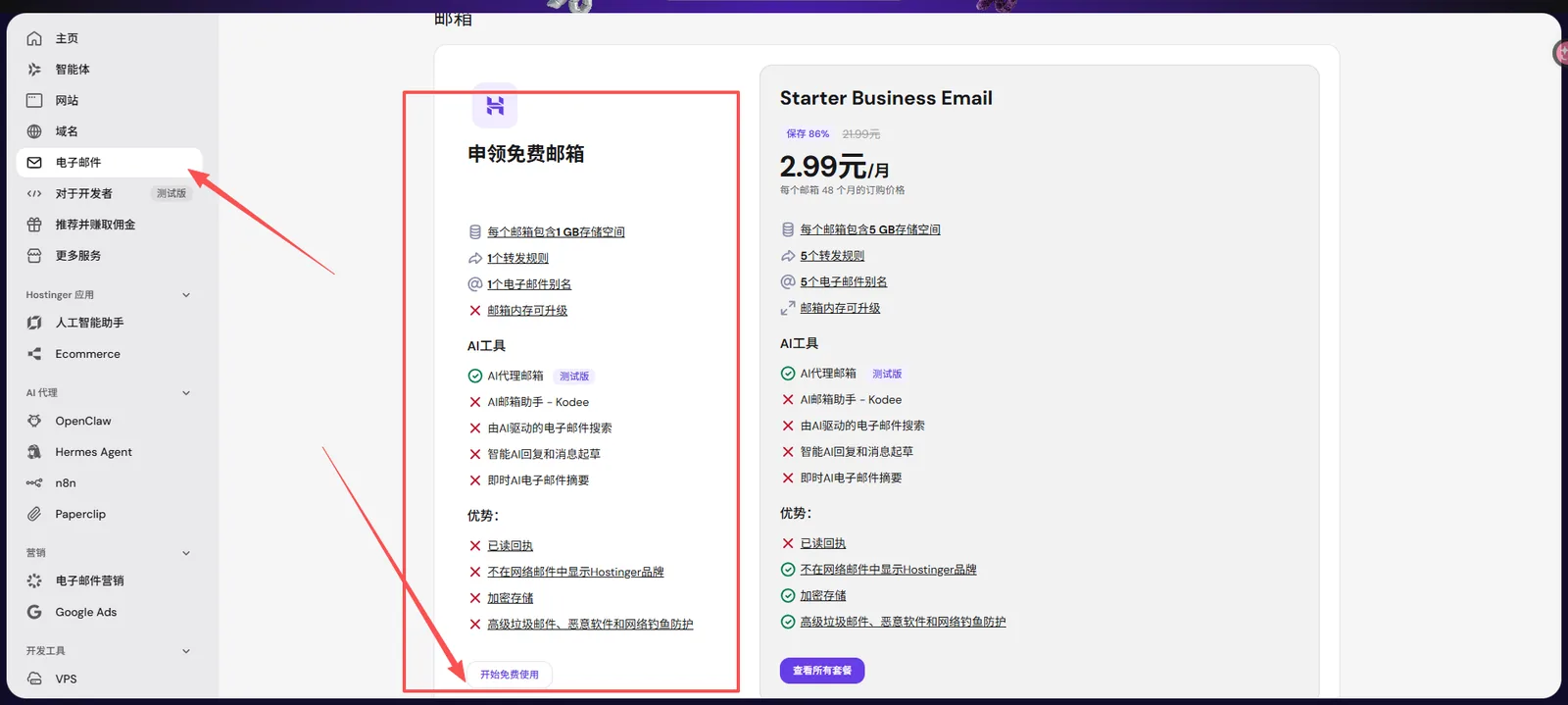
1. The host machine comes with a built-in email account.
If you buy a hosting service like Hostinger or SiteGround, some plans include email, while others require you to purchase it separately. The advantage is that you can manage everything from a single backend; however, you should be aware of email limits, email reputation, and migration costs.
Don't assume that buying a web hosting service guarantees you unlimited free email accounts. Before you start, make sure you check exactly how many accounts and how much storage are included in your plan.
2. Tencent Enterprise Email
It's a well-established platform, offers fast access within China, has a Chinese interface, and is user-friendly for teams in China.
The activation requirements for free and paid plans may differ. Domain verification, filing, and other requirements are subject to the official website and the actual application results. Don't wait until you're halfway through the process to find out you don't meet the requirements.
3. Zoho Mail
Its free business email service used to be frequently recommended. Now, the free plan is only available in select data centers, and whether you can apply for it upon new registration depends on your region.
Some free organization accounts do not support IMAP, POP, and other similar features. If you plan to connect to Outlook, Foxmail, or WordPress plugins, first check the SMTP, API, and authorization permissions for the corresponding plan.
4. Google Workspace
Many teams targeting the European and American markets consider it because they are familiar with Gmail's user experience and team collaboration features.
However, it's not a "buy and guarantee it will reach your inbox" guarantee. Delivery depends on domain reputation, identity verification, and the content of the email. Costs are calculated per account and plan, and domestic teams should consider the ease of access and management beforehand.
This is easily confused: IMAP and POP are methods for receiving emails, while SMTP is the common method for sending emails. Not being able to use IMAP doesn't necessarily mean you can't use SMTP. What you really need to check is whether this plan allows the sending method you intend to use.
A practical piece of advice: Don't just focus on the word "free." First, think clearly: Do you want to use your mobile phone and Outlook to send and receive emails? Do you want WordPress forms to send notifications later? Ask these questions before deciding which email service to buy.
III. DNS four records, explained one by one
After you purchase an email account, the service provider will give you a set of DNS records to fill in on your domain's backend. Many people are confused when they see such a long string.
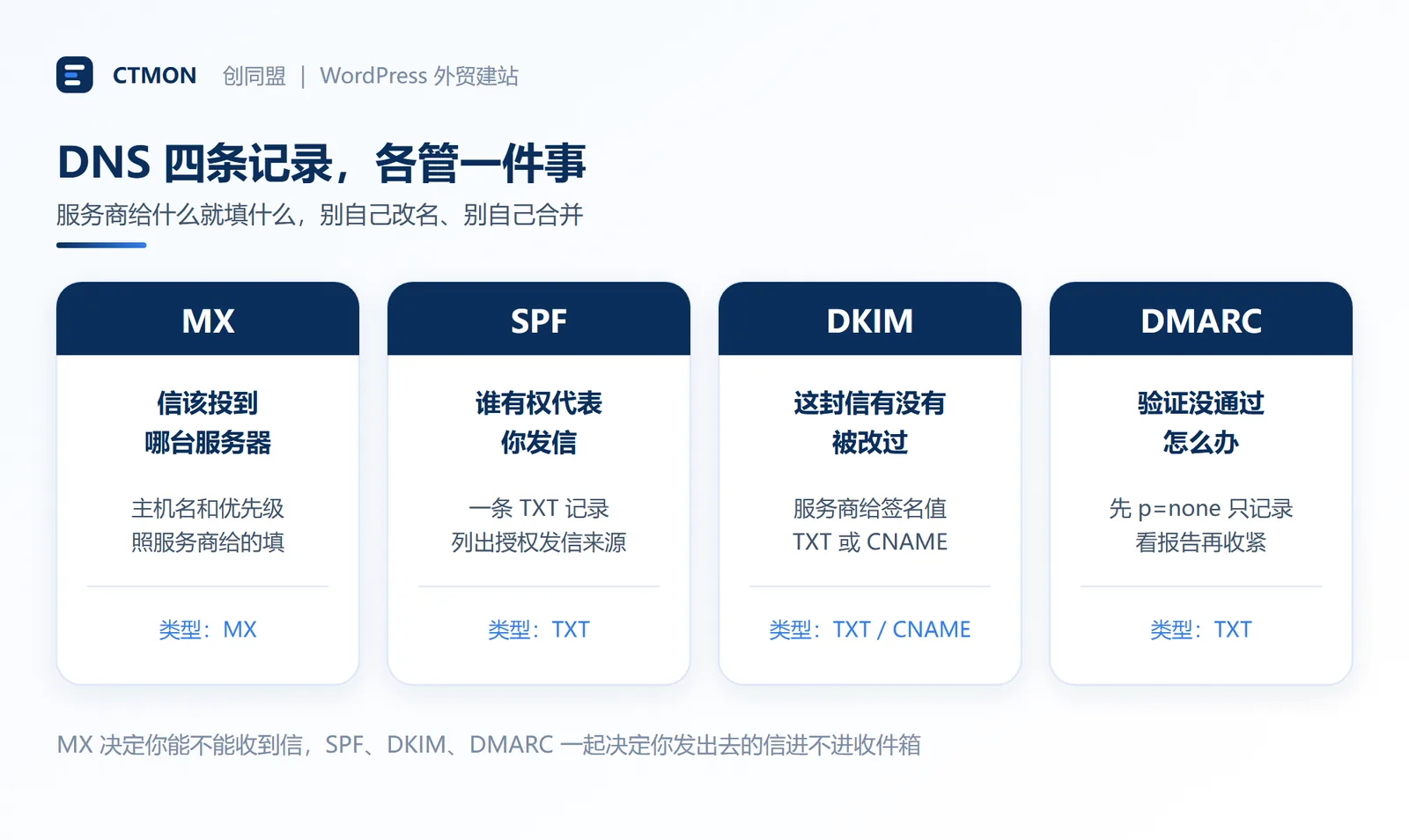
Don't rush. These records may seem numerous, but each one covers a specific task, and a single table can easily match them up.
If you haven't bought a domain name yet, or if your domain name and hosting are not with the same provider, you can first look at the domain name section of the guide from purchasing a domain name to completing the basic website setup . The DNS entry point is in the same backend.
| Record | What does it matter? | What to fill in? | The most common mistakes |
|---|---|---|---|
| MX | Which server will the email be delivered to? | Hostname and priority provided by the service provider | Old records weren't completely cleared after switching service providers. |
| TXT(SPF) | Which servers can send emails on your behalf? | The service provider provided a string of content starting with v=spf1 | Two separate SPF instances were placed on the same domain. |
| TXT / CNAME(DKIM) | Has the email signature been changed? | The selector and signature value provided by the service provider | I changed the record name myself |
| TXT(DMARC) | What to do if verification fails? | First, add a report mailing address p=none | Set to reject delivery right away |
1. MX: Where should the letter be sent?
To receive emails sent to your domain's email address, you typically need to configure MX settings according to your email service provider's requirements. The provider will provide the hostname and priority; simply fill them in accordingly.
When switching service providers, check for any remaining old MX records. However, be aware that if a service provider provides multiple MX records with different priorities, do not delete them casually; they may be normal backup configurations.
2. SPF: Who is authorized to send messages on your behalf?
SPF is a TXT record that tells the recipient which servers can use your domain to send emails.
Service providers typically provide specific content, such as v=spf1 include:某服务商的域名 ~all . This is just an example format and should not be directly copied to your own website.
One pitfall to be aware of: do not run two independent SPF policies for the same domain. If you have already configured one and are now adding a service provider, you should follow the official guidelines to merge the authorization source into a single record, rather than creating a new v=spf1 record.
3. DKIM: Has this letter been altered?
Your email service provider will give you a DKIM configuration, which could be a TXT file or a CNAME record. After adding it to the DNS, the recipient can verify the email signature, check if the message has been modified, and verify that the signature domain matches.
DKIM record names usually have a selector prefix. Don't change the name yourself; just fill in whatever your service provider gives you.
4. DMARC: What to do if the check fails?
DMARC is also a TXT record. Common introductory settings are similar to v=DMARC1 ; p=none ; rua=mailto : report email. This is just a format illustration; before formal configuration, you need to confirm the alignment of SPF, DKIM, and domain name.
p=none means monitoring first, without requiring the recipient to isolate or reject the emails. Review the reports for a period to confirm that your sending sources are configured correctly before considering changing to p=quarantine or p=reject .
Don't set it to reject right away, lest you accidentally reject normal business emails as well.
IV. Three things that must be checked after the test.
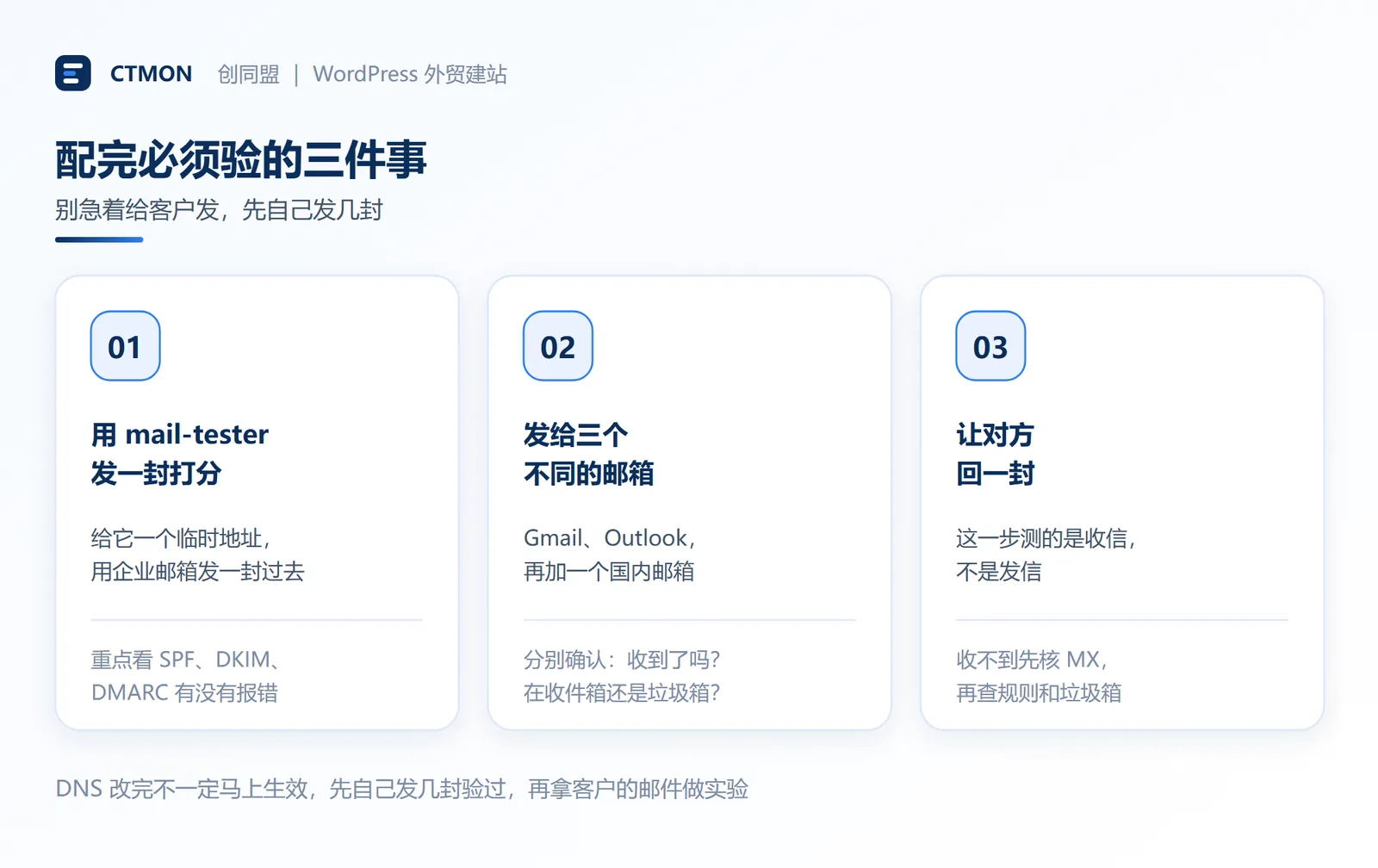
DNS changes don't always take effect immediately; sometimes it's quick, sometimes it takes longer. Don't rush to experiment on your clients' emails; test it yourself first.
1. View reports using mail-tester
Open mail-tester.com ; it will give you a temporary mailing address. Send an email to that address using your business email address, then check the test results.
Scores can help you identify problems, but they're not a guarantee that "a score of 8 or higher will definitely get your emails into your inbox." The key indicators are whether SPF, DKIM, and DMARC are reporting errors.
2. Send to several different email addresses
You can choose Gmail, Outlook, and a domestic email address (QQ or 163). Check each one to see if you received it, and whether it went to your inbox or spam folder.
Different email providers have different filtering rules, and passing a test once does not mean that there will never be a problem in the future.
3. Ask the other party to reply.
This step primarily tests the email receiving process. If you can send emails but don't receive replies, first check your MX (Mobile Message Board), then check your email rules, spam folder, account status, and service provider logs.
Don't assume "the MX file must be misconfigured" just because you can't receive it. It could also be that the forwarding rules or the receiving rules moved it away.
5. These habits will send your emails to your spam folder.
Having a proper record only means you've established your sender identity; it doesn't guarantee every email will reach the customer's inbox. It's best to avoid the following habits:
- Sending a large attachment on the first contact, while the body of the message only says "Please see attachment," may discourage customers from opening it and could trigger risk control measures.
- Sending the same message to dozens or even hundreds of unfamiliar addresses at once. Even if it's not immediately blocked, complaints and bounce-back messages will damage the domain's reputation.
- The subject line is all capital letters and exclamation marks, and it's filled with exaggerated claims like "Free" and "100% Guarantee." The problem isn't any particular word, but that the entire email looks like a mass-sent advertisement.
- The main content is almost entirely images, with very little normal text. This makes it difficult for customers to read, and filtering systems also struggle to understand what you're talking about.
- Sending out mass emails immediately after registering a domain is a bad idea. New domains don't have much reputation to build up, so it's safer to start with regular one-on-one communication and gradually increase the volume than to suddenly send out mass emails.
VI. How to set up the client
The web version works, but most people will install it on their mobile phone or computer email client. Make sure you enter the two parameters correctly.
1. Prioritize receiving emails using IMAP.
This way, email status can usually be synchronized across mobile phones, computers, and web browsers.
POP3 tends to download emails to the local device. Whether a server copy can be retained depends on the specific settings. It's not that using POP3 will always result in the loss of historical emails.
2. Sending emails is usually done using SMTP.
Common ports are 465 (implicit TLS) or 587 (STARTTLS). Please fill in the specific hostname, port, and encryption method according to your service provider's instructions; do not rely on memorization.
Service providers usually provide "Client Configuration" instructions in their backends. Before filling them out, you should also check whether you need to enable SMTP separately, create an application-specific password, or switch to OAuth authorization.
These concepts will also be encountered in the next post when configuring emails for WordPress, but you may not be able to directly reuse your current login password.
VII. Frequently Asked Questions
1. My company email is configured, so why are clients still not receiving quotes?
First, check if there are any bounce notifications in the outbox, then verify if SPF, DKIM, and DMARC have passed.
The absence of a bounce message does not necessarily mean the email has reached the inbox. The customer can check their spam/junk mail folder, and further investigation can be conducted using the service provider's logs.
2. Are the business email and WordPress contact form set up in the same way?
No. Corporate email is responsible for sending and receiving emails directly from the email account; website form notifications are emails initiated by the website, so you need to check WordPress's email sending methods separately.
Since both share the same domain name, SPF and DKIM records will affect each other, but the configuration entry and troubleshooting methods are not the same.
3. Can a domain name be used with two corporate email service providers at the same time?
There can be complex offloading or migration solutions, but don't just mix MX from different service providers together.
Generally, businesses should first select a primary email service, follow its official migration steps, and then clear the old records after the switch is complete.
VIII. Summary: Distinguishing between the three paths makes troubleshooting easier.
At this point, the first two paths are basically clear: when a customer sends you an email, you know where to check; when you give a customer a quote, you also know how to verify their identity and check delivery status.
However, there's a third possibility—emails sent by the WordPress website itself. A "submission successful" message on the contact form simply means the form process may be complete; it doesn't guarantee the notification email will be delivered to the sales inbox.
The website may be using the host's default email sending method, or it may be being taken over by a plugin; both situations need to be investigated separately.
In the next article, we'll discuss "What to do if WordPress form emails won't send: WP Mail SMTP configuration practice," and configure the website's email sending function separately.
If you are in the pre-launch phase of your website, you can also refer to the checklist for "What to do after your WordPress website goes live" to test the "Can customers contact you?" link as well.
CTMON: WordPress Foreign Trade Website Building and Website Technical Configuration
CTMON provides services including WordPress B2B export website development, Google SEO optimization, Google Ads advertising, and overseas digital marketing.
Configurations like corporate email, DNS records, and form notifications may seem trivial, but they directly determine whether inquiries reach the sales team. When building a website, we include domain names, email addresses, and form-based emails in our pre-launch checks, rather than waiting for customers to report "not receiving emails" before investigating.
If your foreign trade website is about to go live, or if your form notifications are currently unreliable, you can visit the CTMON website to learn about our website building and technical configuration services.
Author: CTMON | B2B Digital Marketing Service Provider
References and Information Sources
- RFC 7208:Sender Policy Framework (SPF):https://datatracker.ietf.org/doc/html/rfc7208
- RFC 6376:DomainKeys Identified Mail (DKIM) Signatures:https://datatracker.ietf.org/doc/html/rfc6376
- RFC 7489:Domain-based Message Authentication, Reporting, and Conformance (DMARC):https://datatracker.ietf.org/doc/html/rfc7489
- mail-tester email testing tool: https://www.mail-tester.com/
- Cloudflare DNS Record Management Documentation: https://developers.cloudflare.com/dns/manage-dns-records/how-to/create-dns-records/
- Hostinger Help Center (email): https://www.hostinger.com/support/email/
- Tencent Enterprise Email: https://exmail.qq.com/
- Tencent Enterprise Email Help Center: https://work.weixin.qq.com/help/?h=e
- Zoho Mail Help Documentation: https://www.zoho.com/mail/help/
- WordPress Function Reference wp_mail() : https://developer.wordpress.org/reference/functions/wp_mail/
Note: Features, pricing, and availability may vary depending on the email service plan. For specific record values, authorization methods, and pricing details mentioned in this article, please refer to your email service provider's official documentation.
What does international social media management service include? 2026 Guide to Social Media Management for Export Businesses
2026-10-28
How to write a WordPress product page that will make overseas buyers want to send inquiries?
2026-10-28
How to fix WordPress form emails not sending: Practical WP Mail SMTP configuration
2026-10-27
Are foreign trade promotion companies reliable? Six key criteria for businesses to judge promotion service providers in 2026.
2026-10-26
How do I set up an email account for export businesses? How can I configure it to avoid it ending up in the spam/junk mail folder?
2026-10-26
Related Articles
How to configure WPForms contact forms: Which should I choose, WPForms or Contact Form 7?
How to write a WordPress product page that will make overseas buyers want to send inquiries?
How to fix WordPress form emails not sending: Practical WP Mail SMTP configuration
Recommended essential WordPress plugins: 6 types of plugins commonly used for B2B export websites
Essential Pages for a WordPress B2B Export Website: Besides Product Pages, These 11 Page Types Should Also Be Considered

