Contents +
Google Analytics (GA4) Installation Process
Source: 创同盟
Date: 2026-06-16
Views: 572
Recently, we've received many messages from friends asking about the tasks to be done after launching a business website. During these conversations, we've found that many new members are not very familiar with the installation process of Google Analytics (GA4), a website data monitoring tool. Below, we'll break down the installation process, steps, and precautions, and explain how to authorize and manage permissions for other accounts during team operations.
All the following steps require an external internet connection and assume you are logged into a Google account by default. As the platform registration process has been updated, the following steps are for reference only.
I. Google Analytics Website Configuration and Installation Process
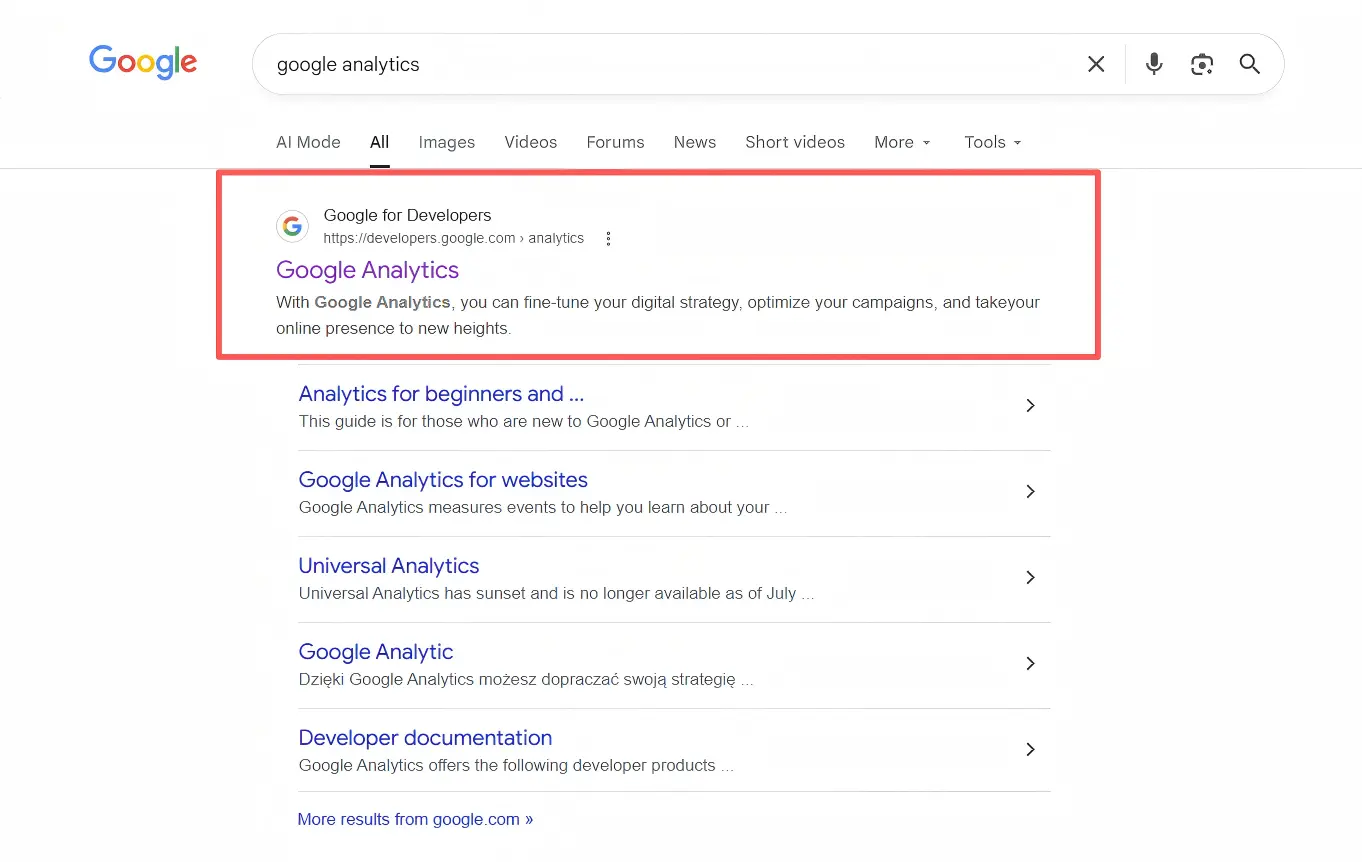
1. First, search for "google analytics" on Google, click to enter the website, and then click "Sign in";
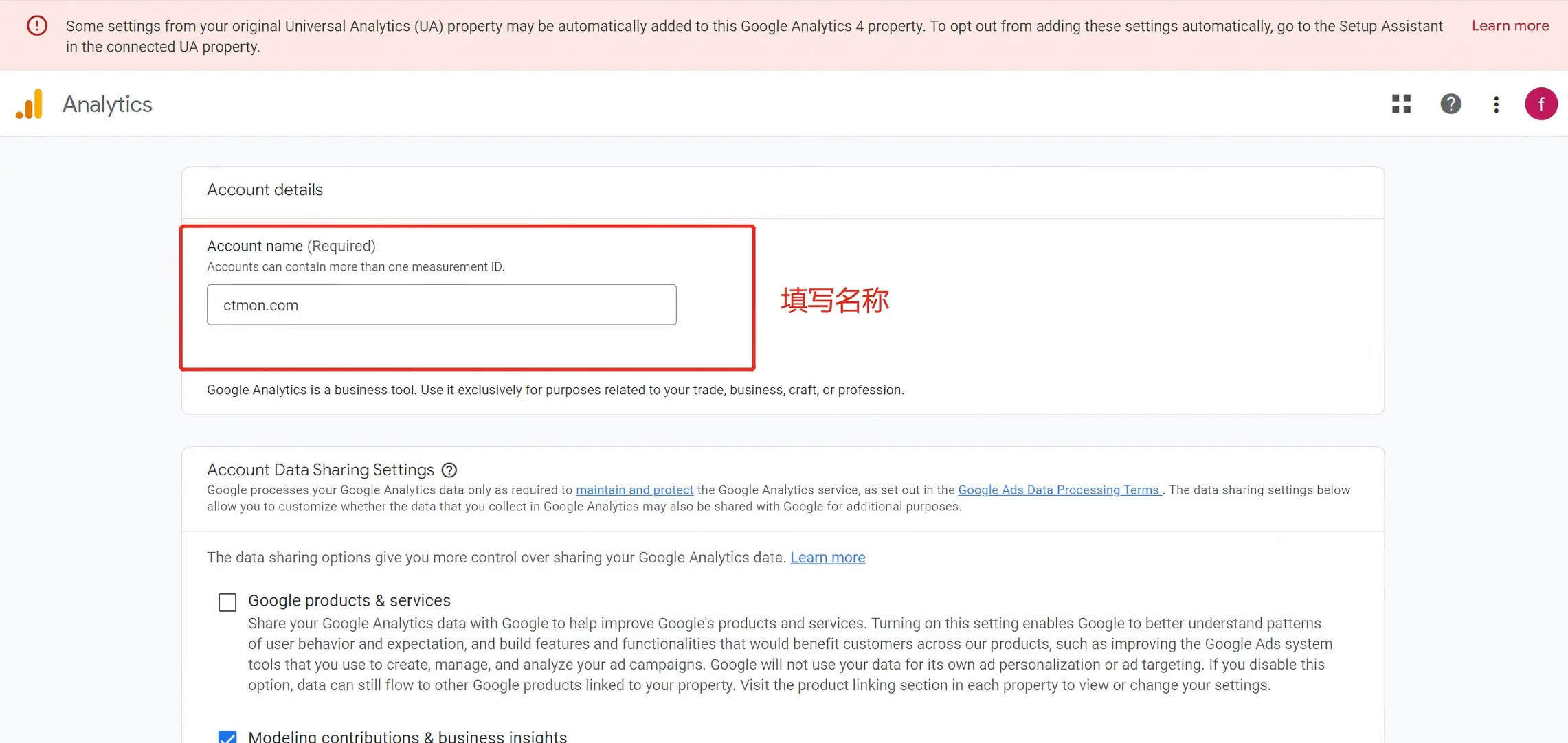
2. Enter the name of the website for which you need data statistics, such as "Google+2026". It is recommended to use the domain name/time format.
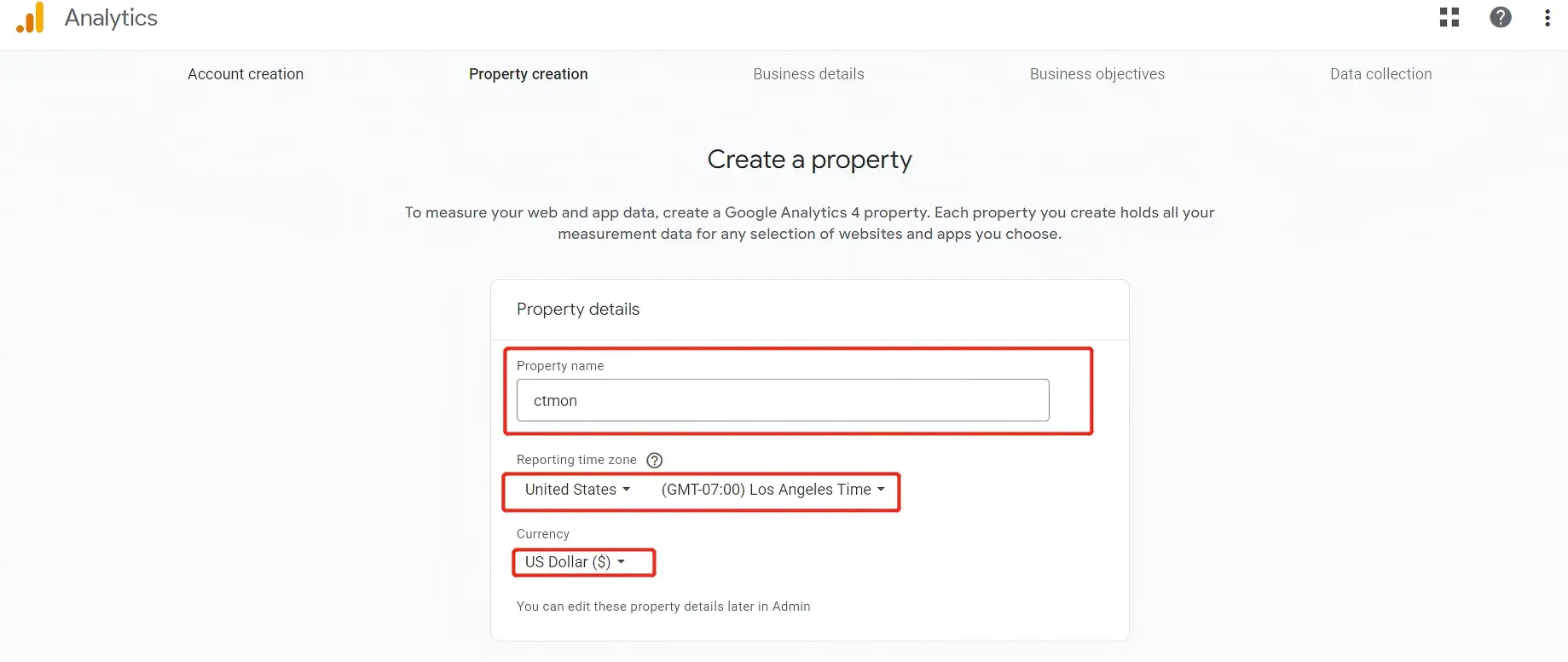
3. Enter the attribute name (brand name is recommended), report time zone (you can choose the target country or domestic time zone according to your data statistics period), currency value (select currency value type); then proceed to the next step;
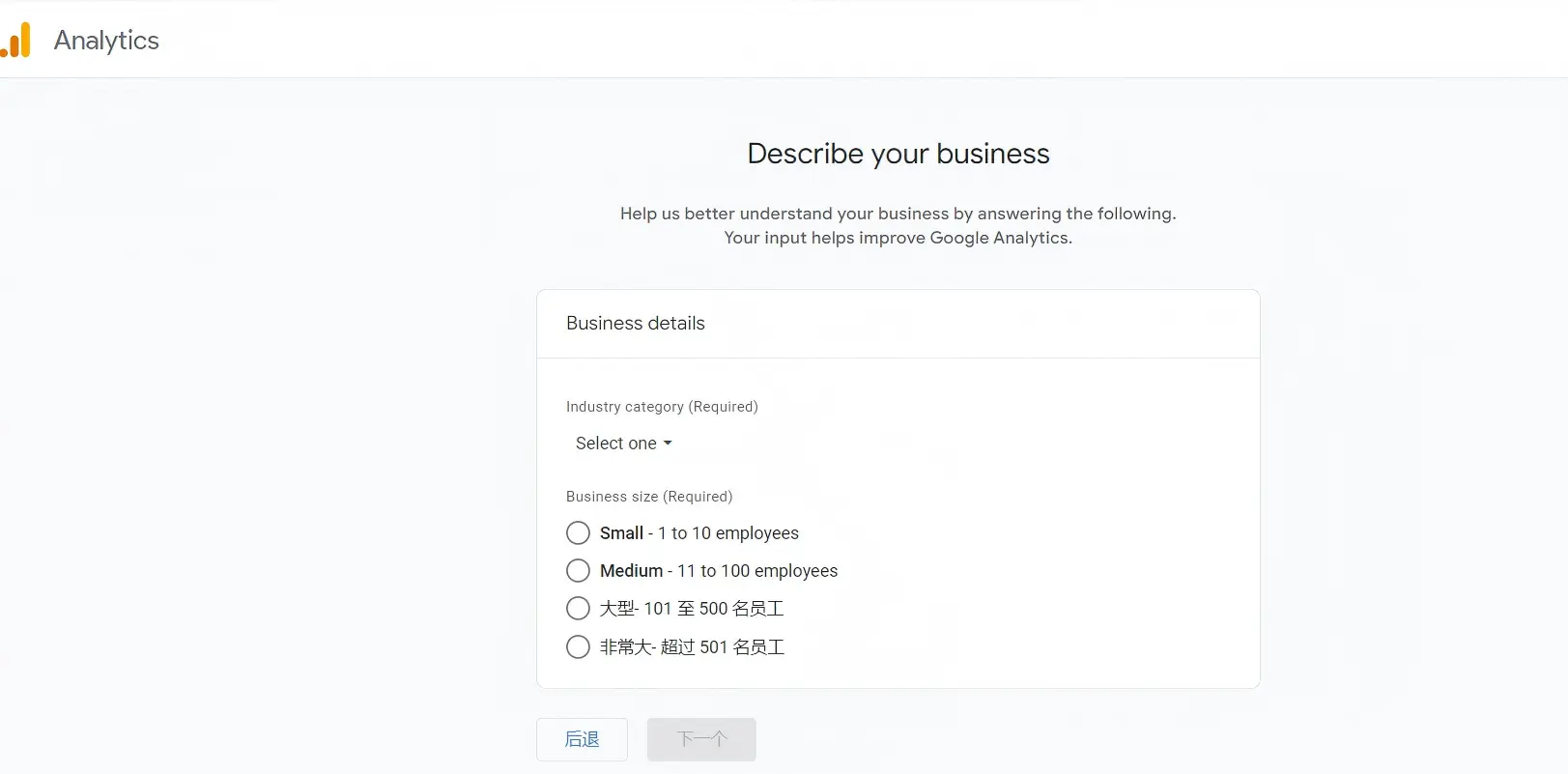
4. Fill in the "Industry" and "Number of Employees" according to the company information; check the boxes to proceed to the next step;
5. For personalized reports for your business, please select the topics that are most important to you. (For example, "Generate leads, drive online sales, increase brand awareness, and monitor user behavior") You can check all of these.
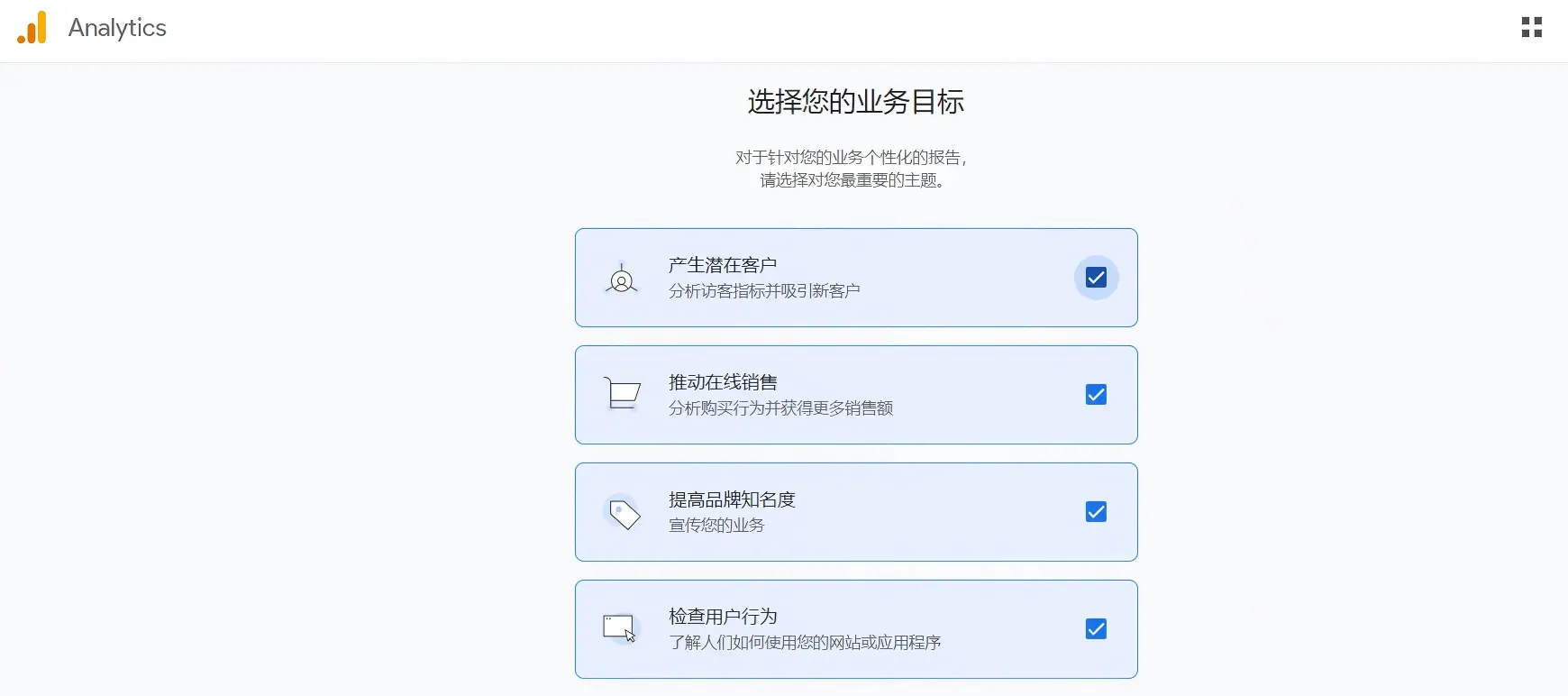
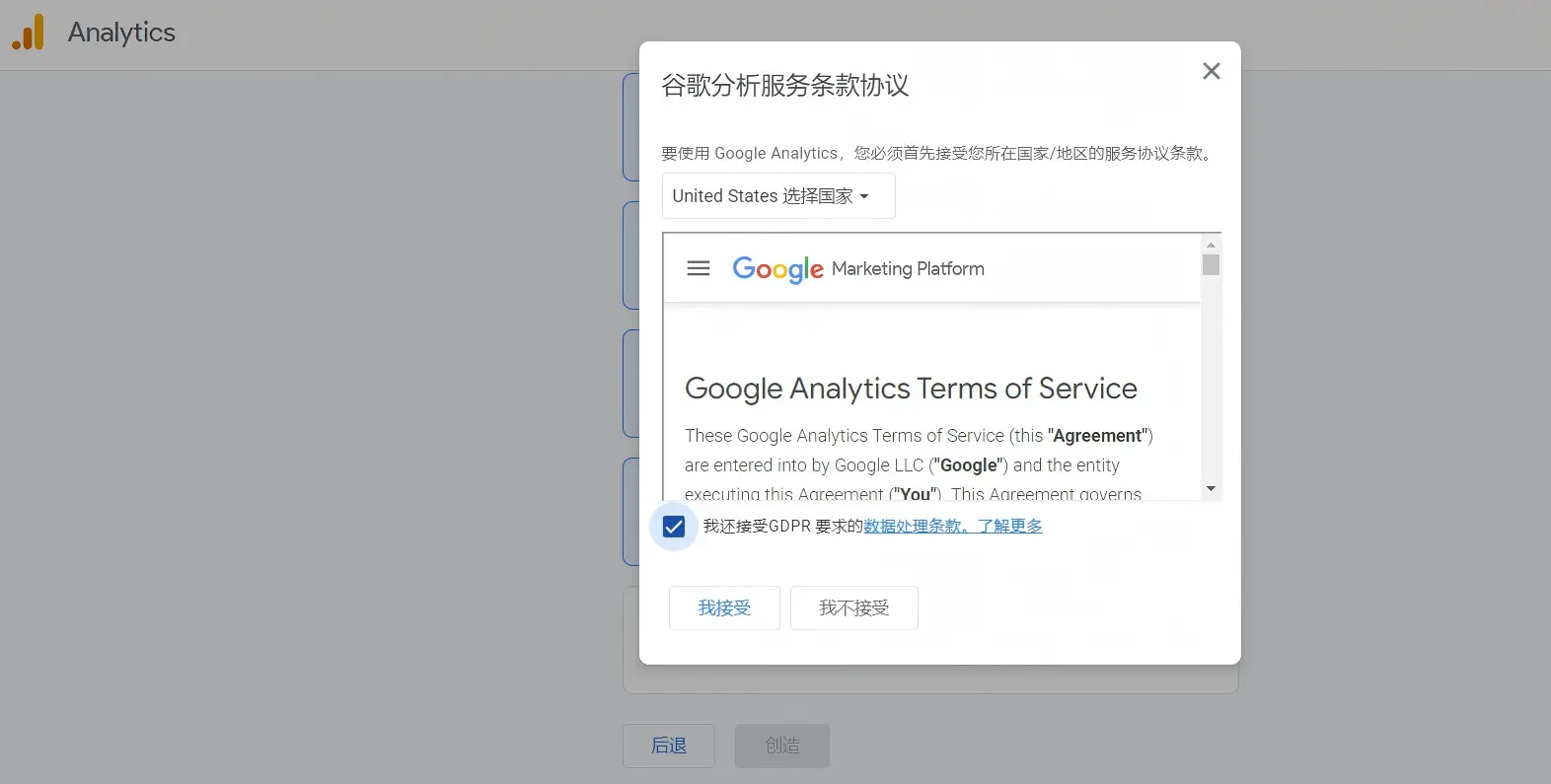
6. Scroll down to view the agreement and agree to the Google Analytics service agreement;
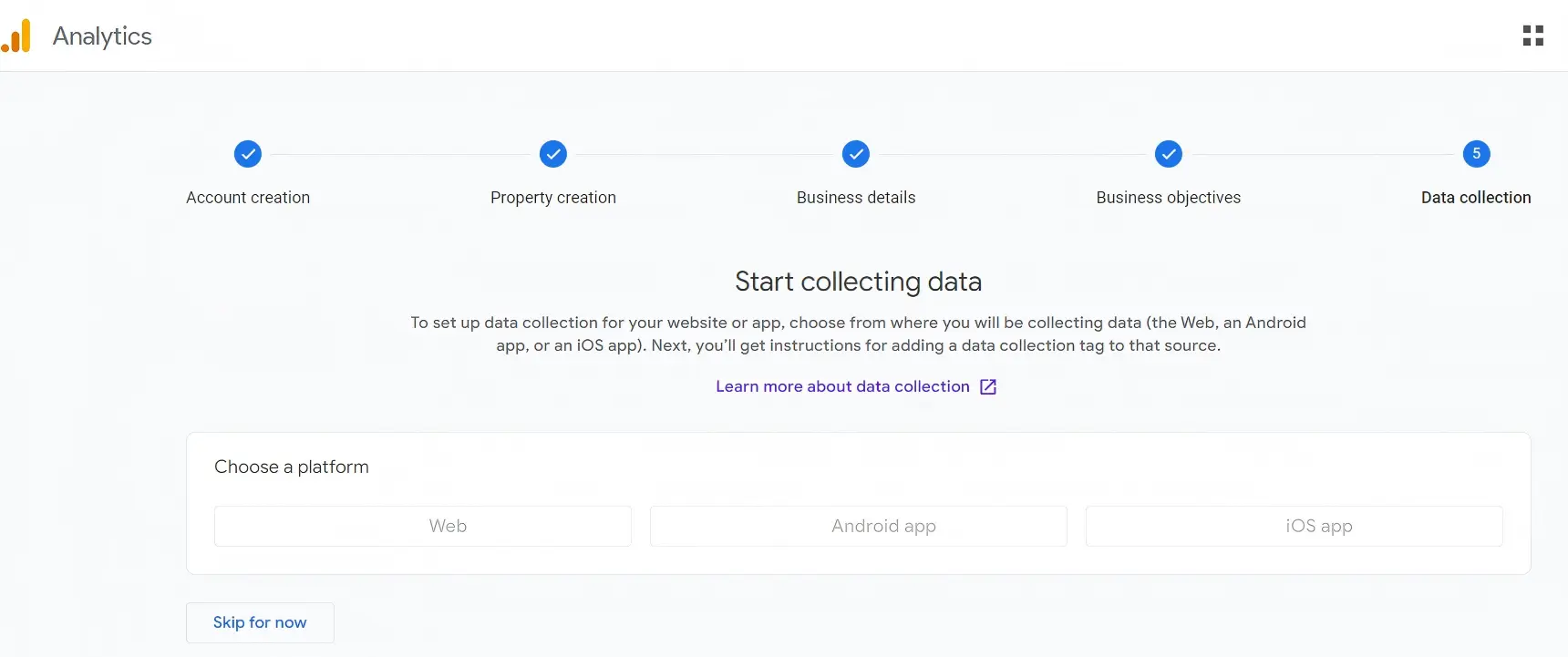
7. Select the type of data analysis; the default is "Web Page".
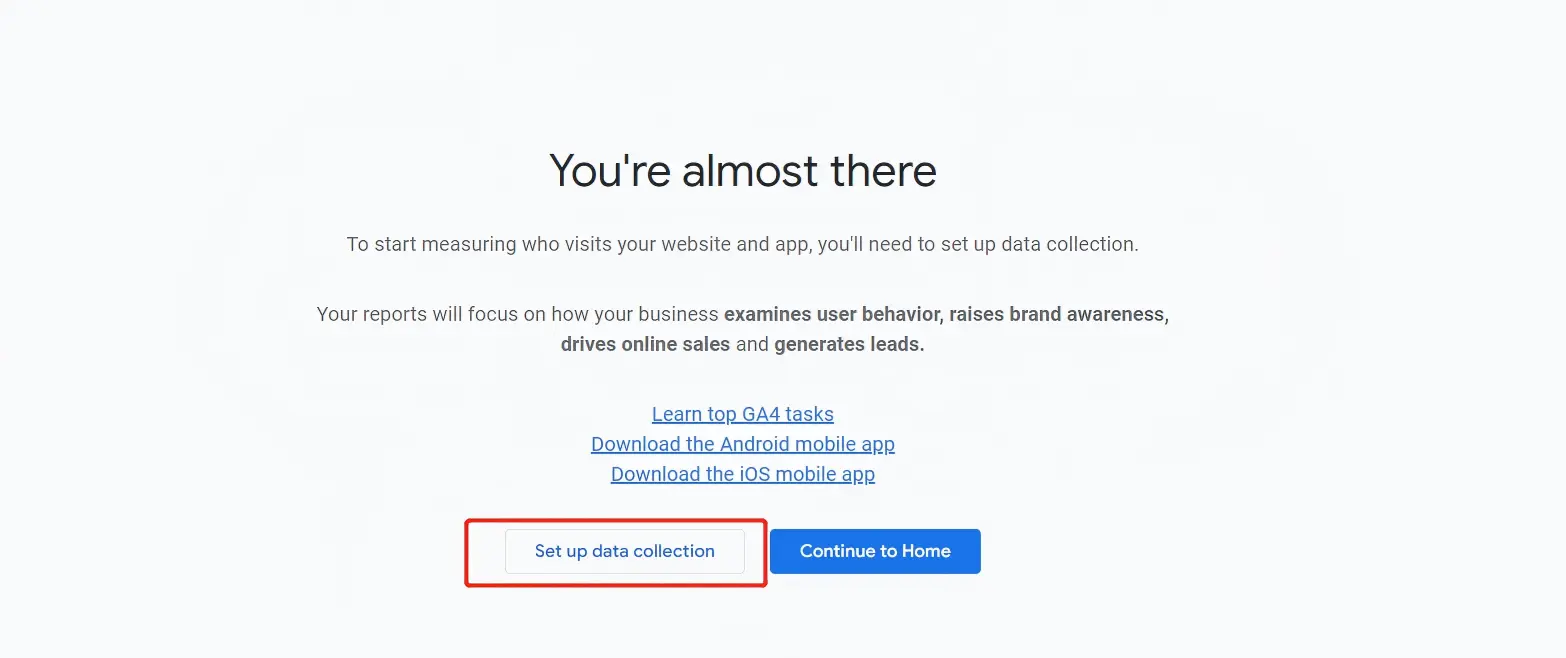
8. Set up data collection and analysis
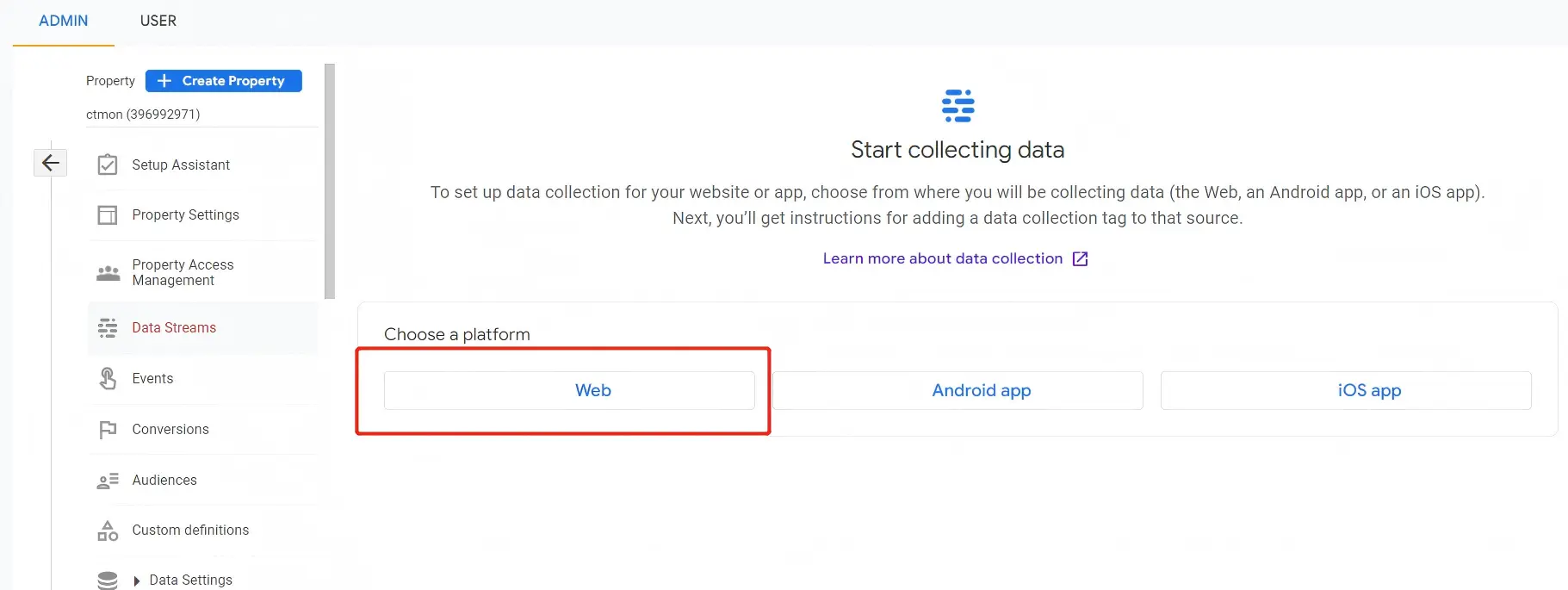
9. Enter the website domain name and name
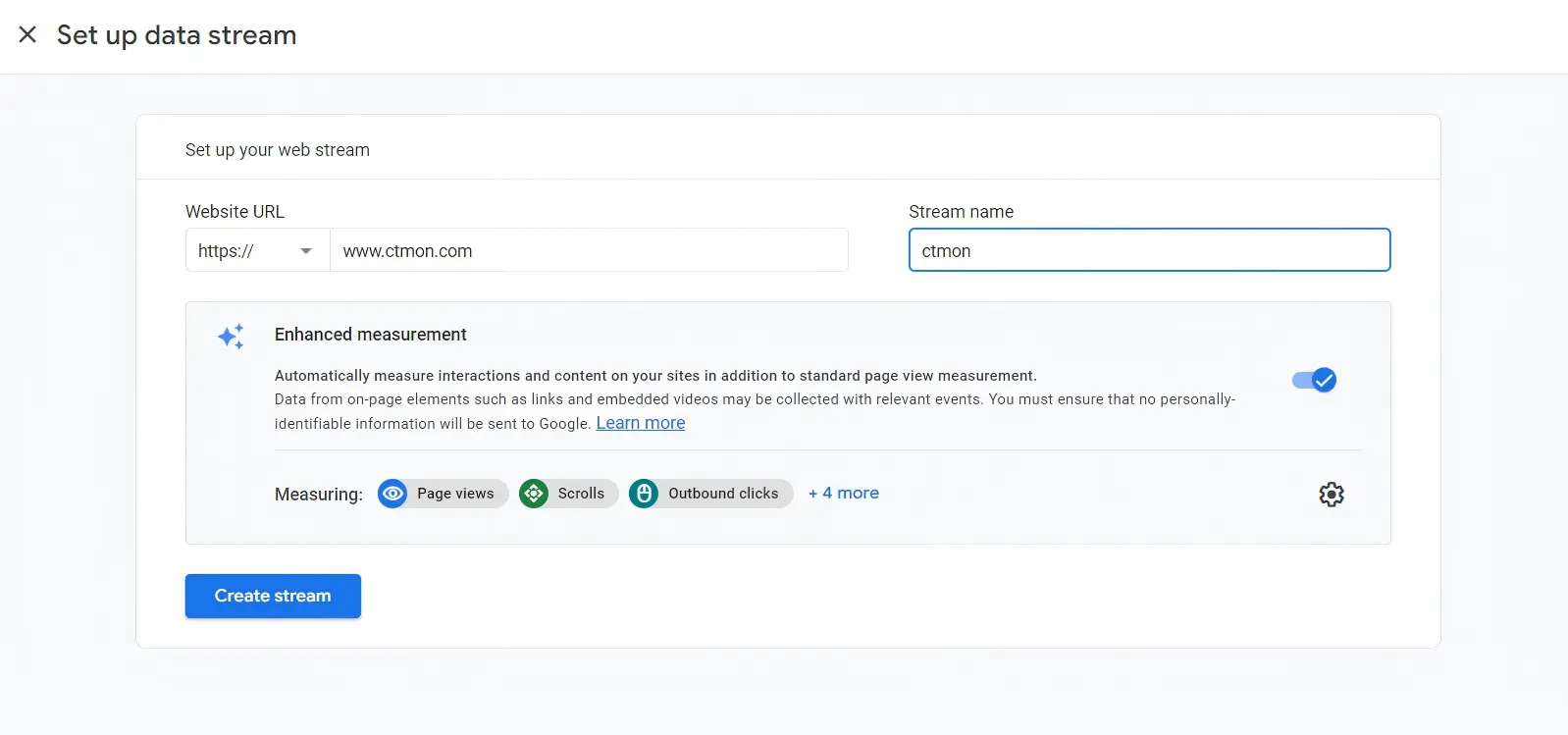
10. Click to get the code tag
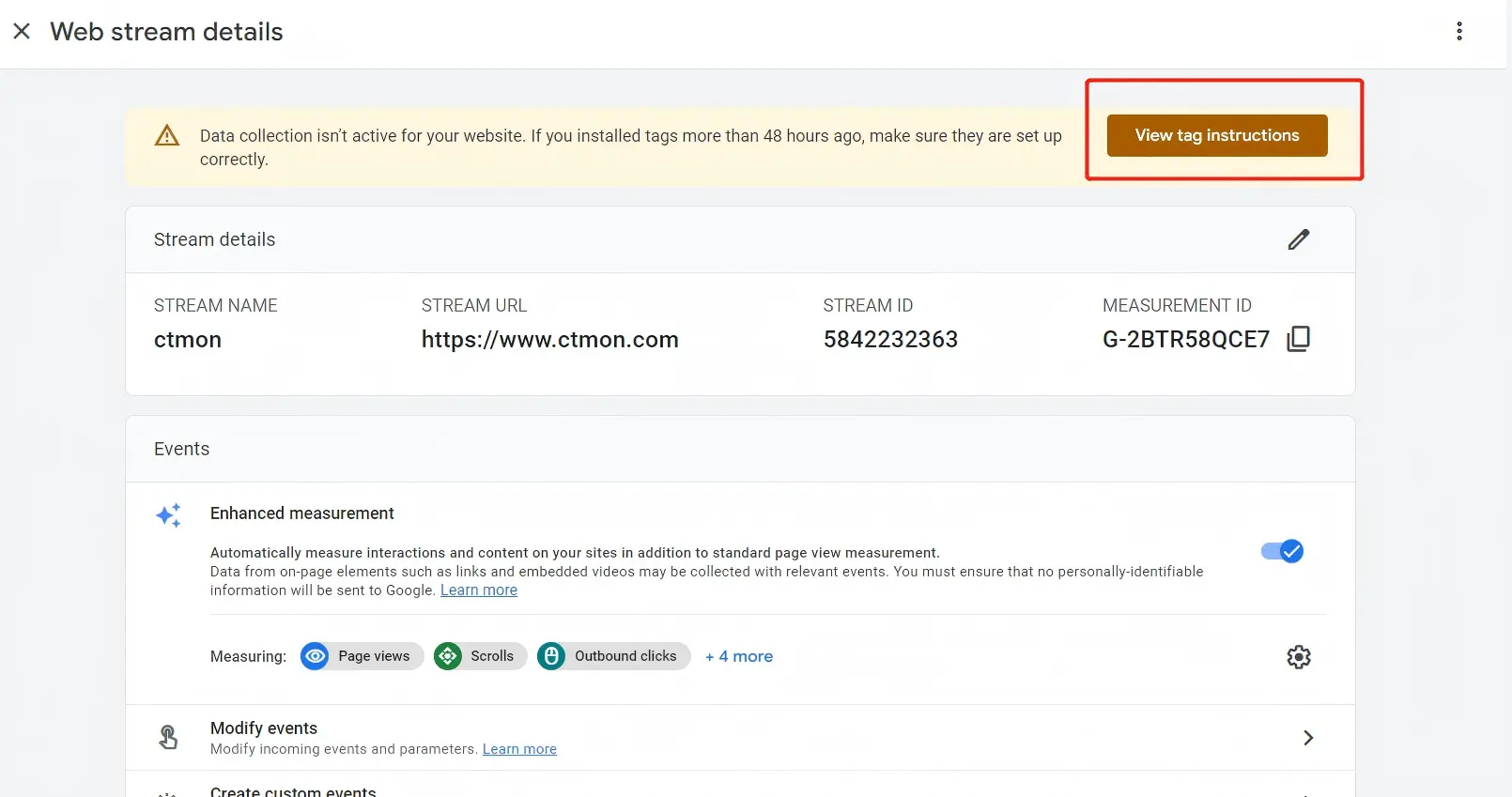
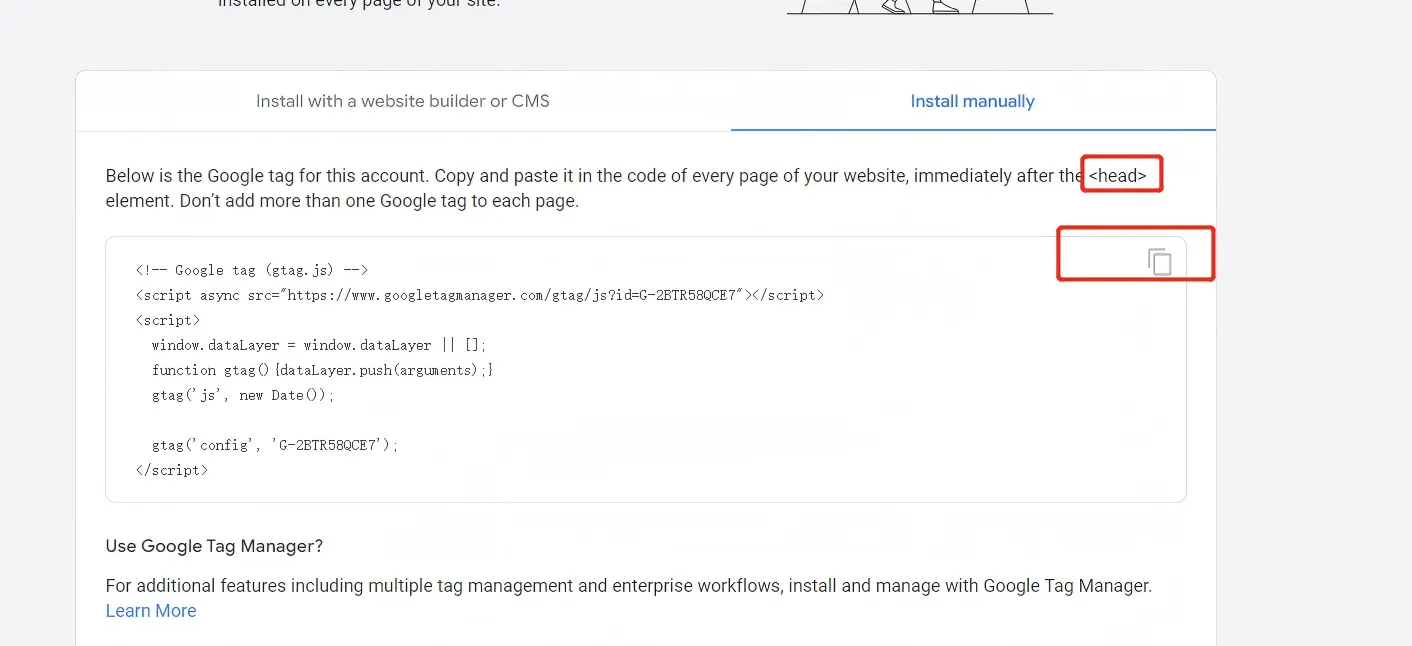
11. Copy the code and place it between <head> and </head> on the target website. Wait 30 minutes, then check whether the code was installed correctly.
The above outlines the application and installation process for the website data monitoring tool Google Analytics. Below is an explanation of the authorization process after application. With Google Analytics logged in and open, click the settings icon in the bottom left corner ⚙.
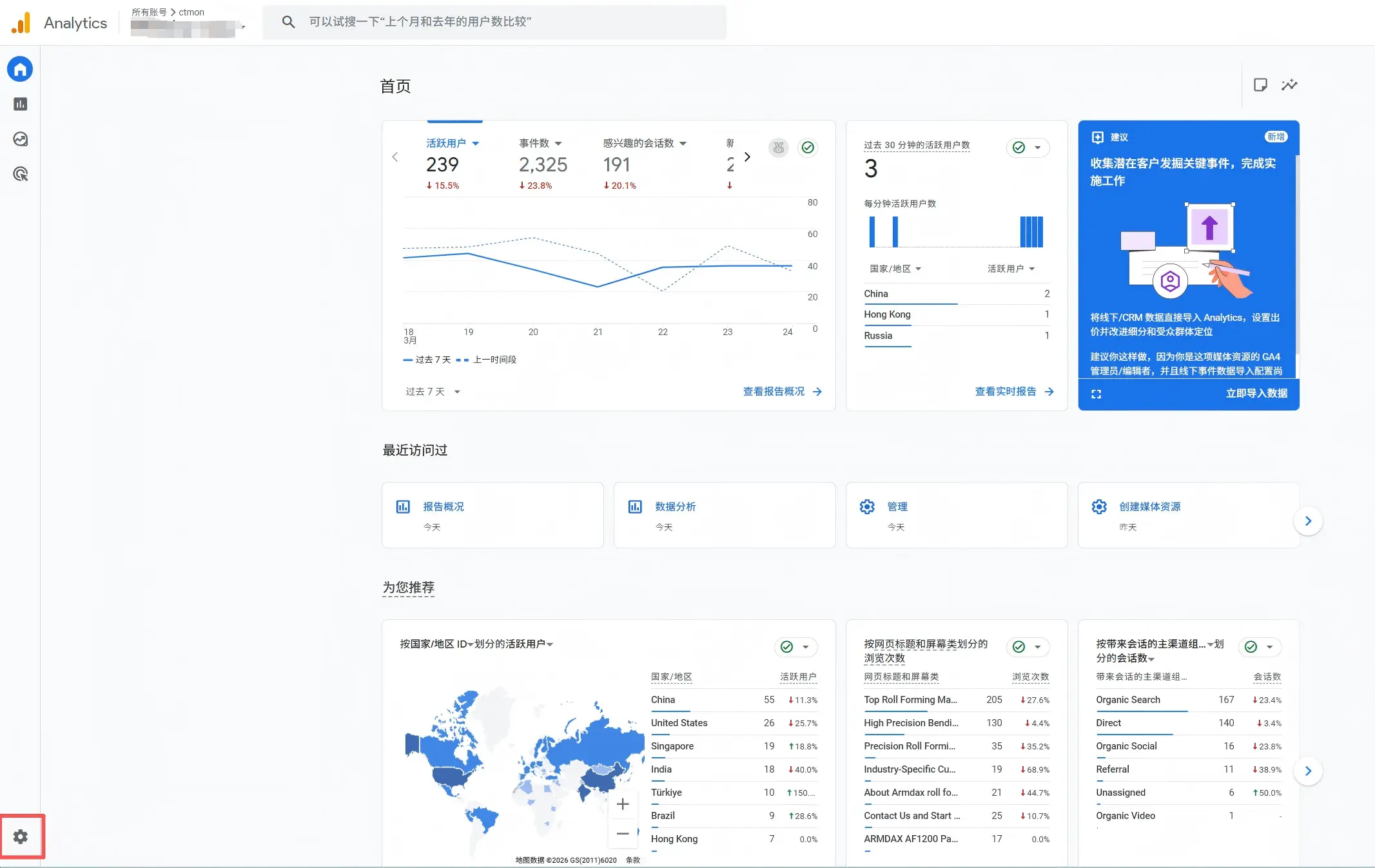
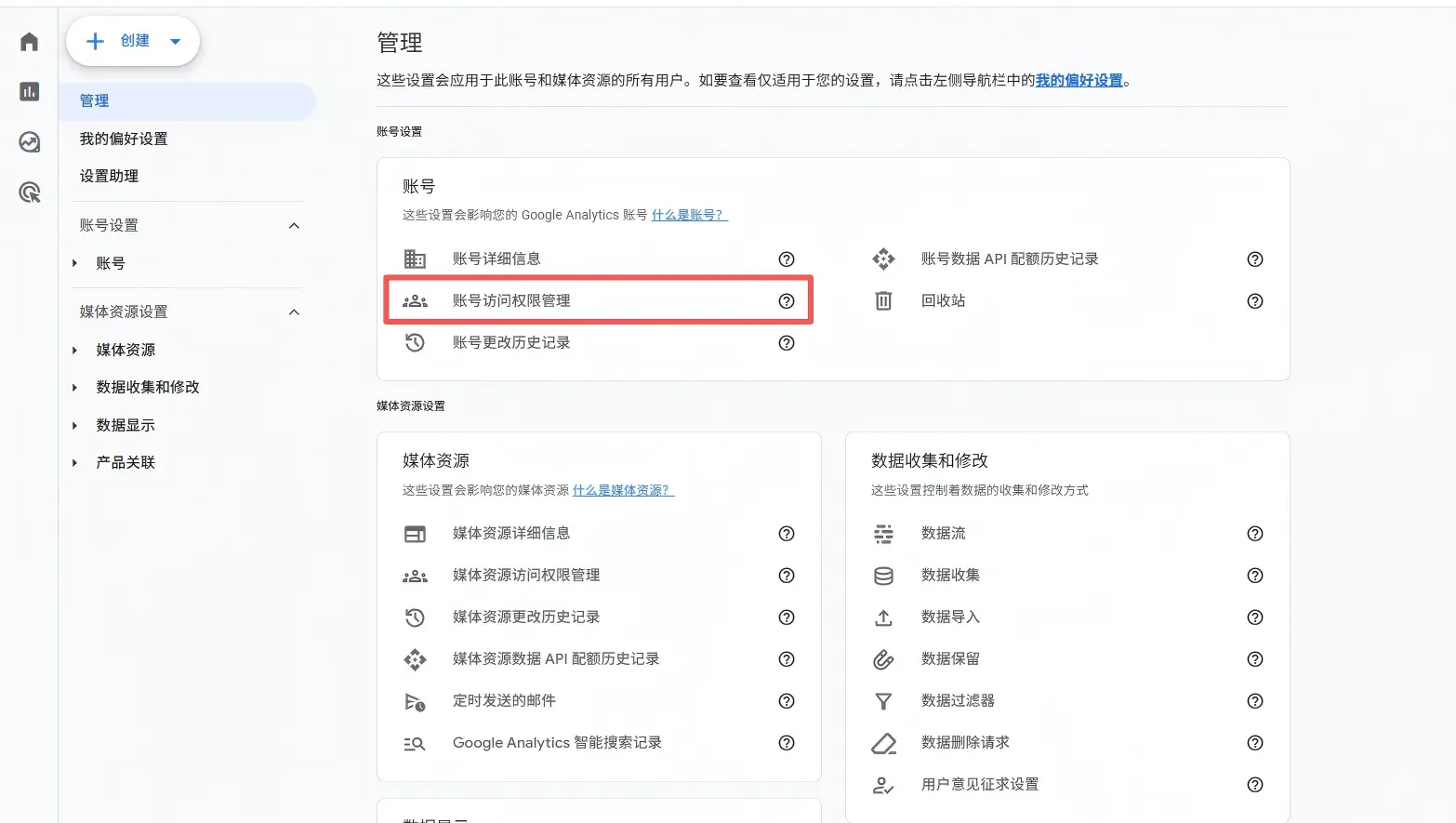
1. Click on Account Access Management, then click on Add Permissions for New Users in the upper right corner.

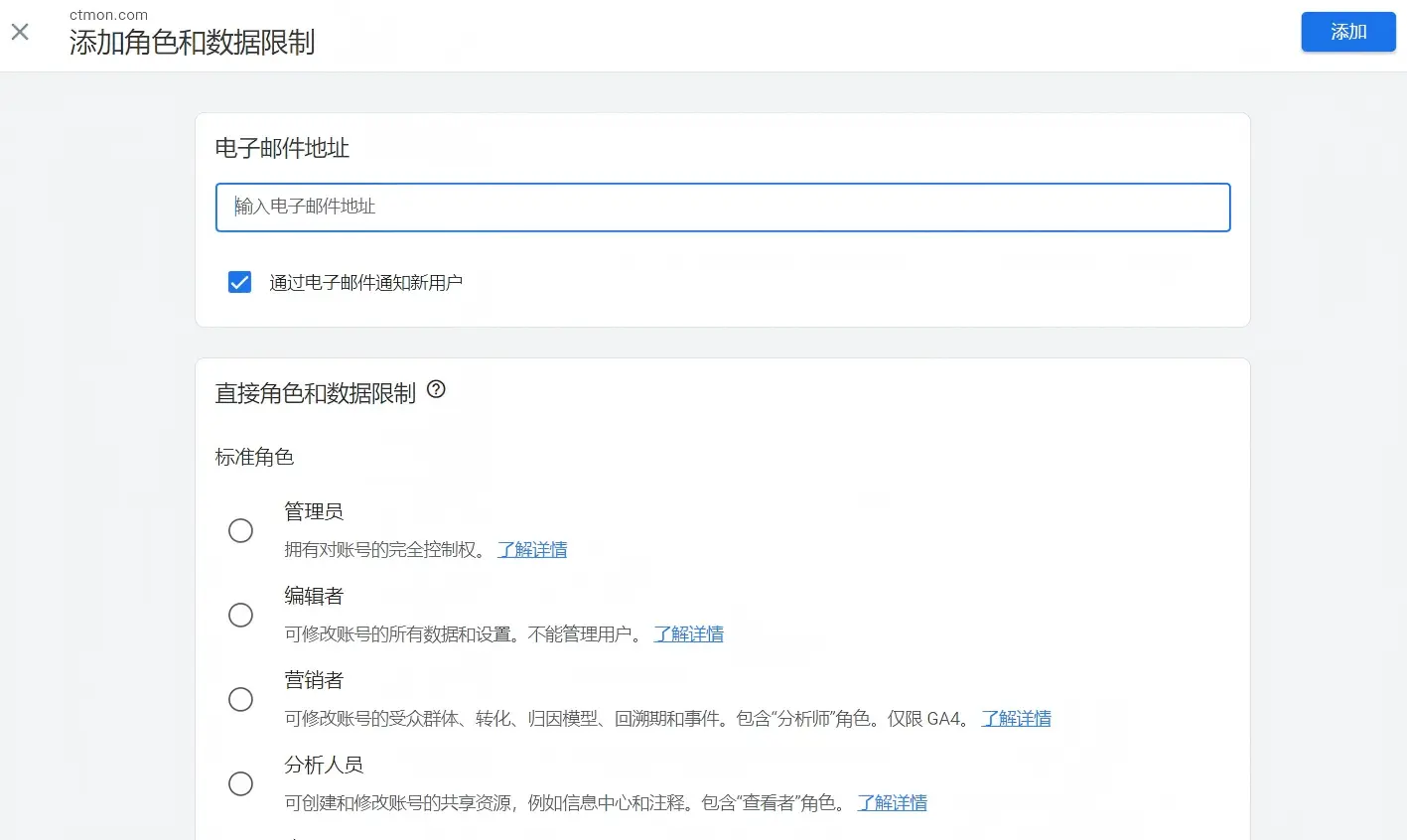
2. Enter the email address to be added, check the corresponding function permissions, and click Add to complete;
The above outlines the installation and licensing process for Google Analytics (GA4). Website traffic statistics are a fundamental and essential tool for acquiring SEO organic traffic and advertising traffic for a website. If you encounter any problems during the installation and licensing process, please leave a private message. We will update the steps and settings according to the latest platform updates.
PS: Google Analytics (GA4) requires authorization; the authorized person must operate with administrator privileges.
What does international social media management service include? 2026 Guide to Social Media Management for Export Businesses
2026-10-28

How to write a WordPress product page that will make overseas buyers want to send inquiries?
2026-10-28

How to fix WordPress form emails not sending: Practical WP Mail SMTP configuration
2026-10-27
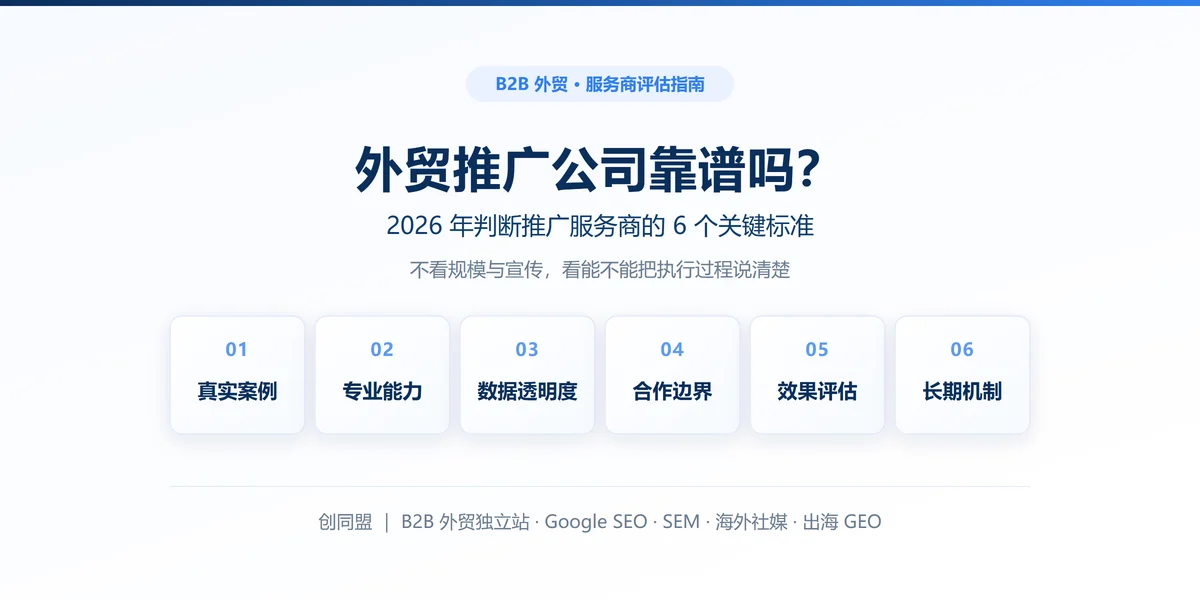
Are foreign trade promotion companies reliable? Six key criteria for businesses to judge promotion service providers in 2026.
2026-10-26
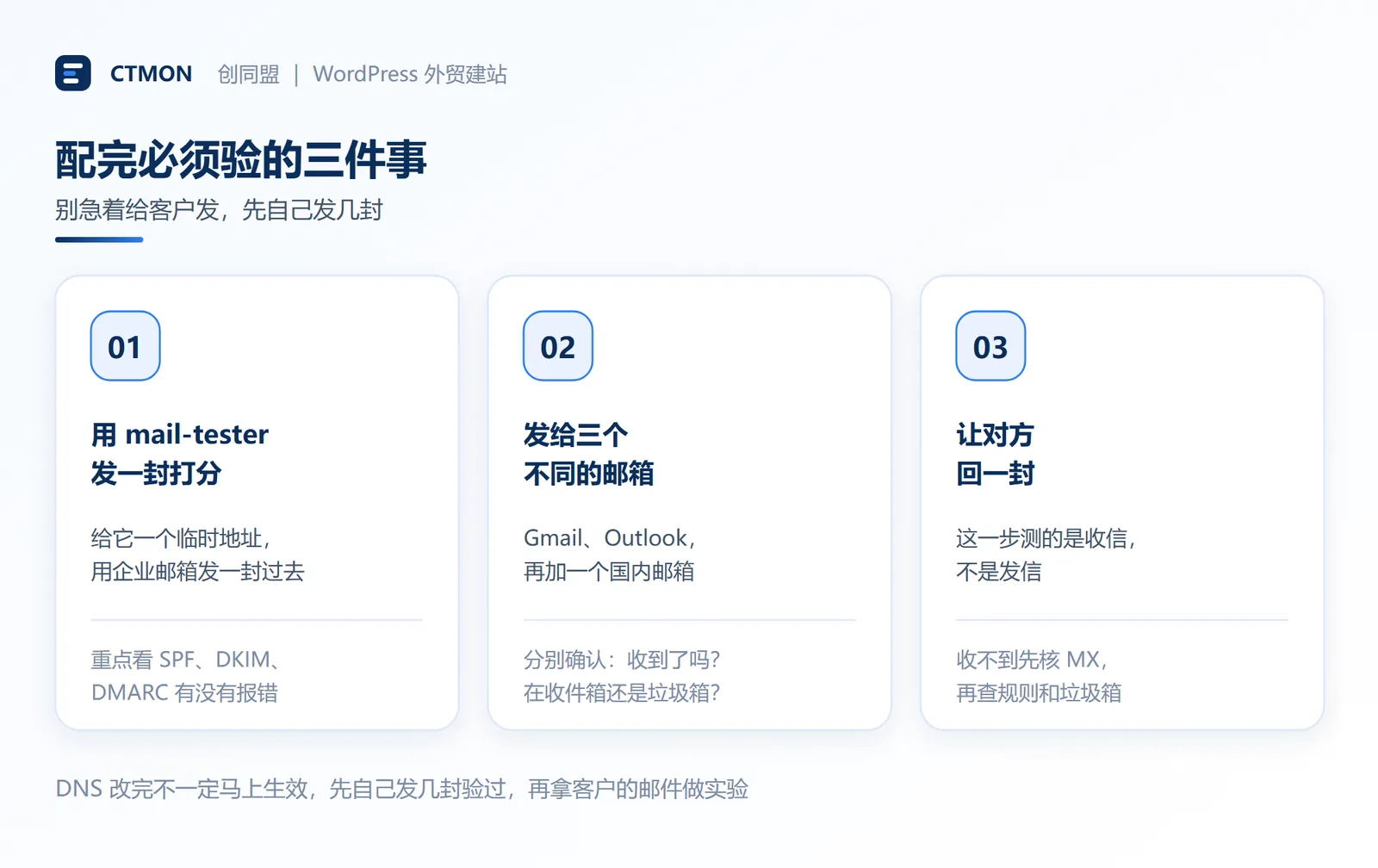
How do I set up an email account for export businesses? How can I configure it to avoid it ending up in the spam/junk mail folder?
2026-10-26
Related Articles
What are the differences between Google SEO and Google Ads? Which should B2B export businesses do first?
2026 Shenzhen Google SEO Optimization Company Recommendations: Service Provider Comparison and Selection Guide
How to improve Google rankings through SEO optimization for international trade? 7 practical methods and steps.

Recommended Shenzhen B2B export website operation company: How to choose a suitable international lead generation service provider for your enterprise?

Why is the Google ranking of Shenzhen export businesses' business websites not improving?

